SNITCH

SNITCH app UI and user flows

App

About SNITCH

Screens and user flows from the SNITCH app.

SNITCH is an Android app in the Shopping category. Last recorded on 14 September 2026.

Men’s fashion shopping, product discovery and checkout journeys.

In the library
5 flows · 10 screens
Category and platform
Shopping · Android
Updated
Sept 2026
FLOWNATO RATING
3.5Our rating · 15 UX criteria

Add an item to the bag and start checkout

Flow

About SNITCH Add an item to the bag and start checkout

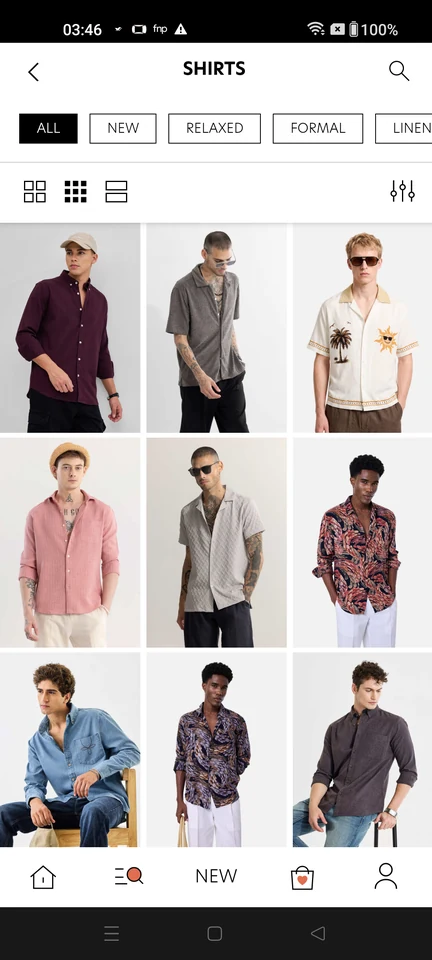
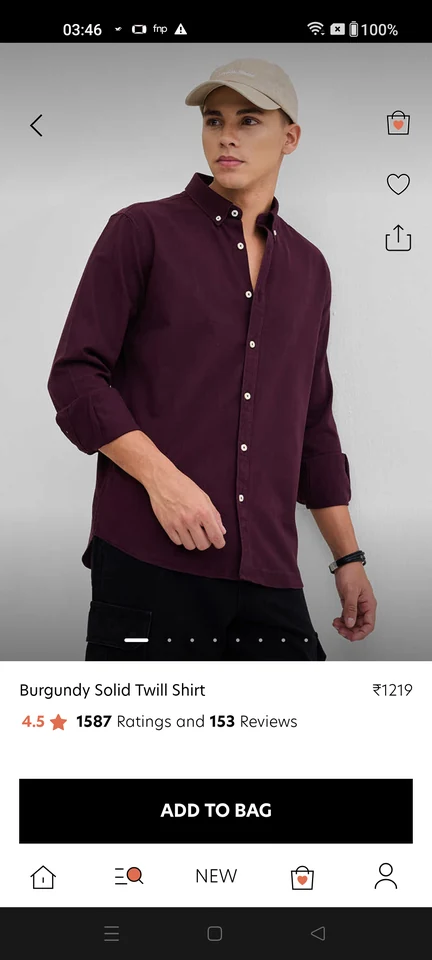
Browse SNITCH shirts, choose an available size and add the product to the bag. Review pricing and start checkout, which requires phone verification.

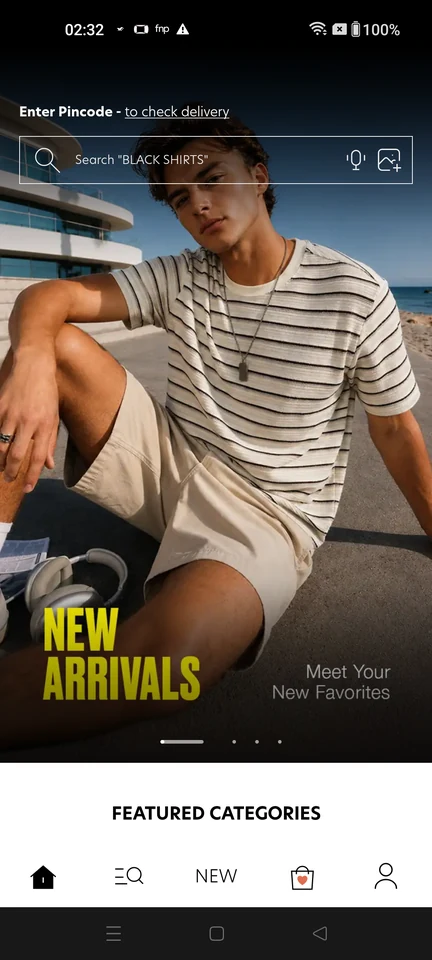
  1. SNITCH home storefront
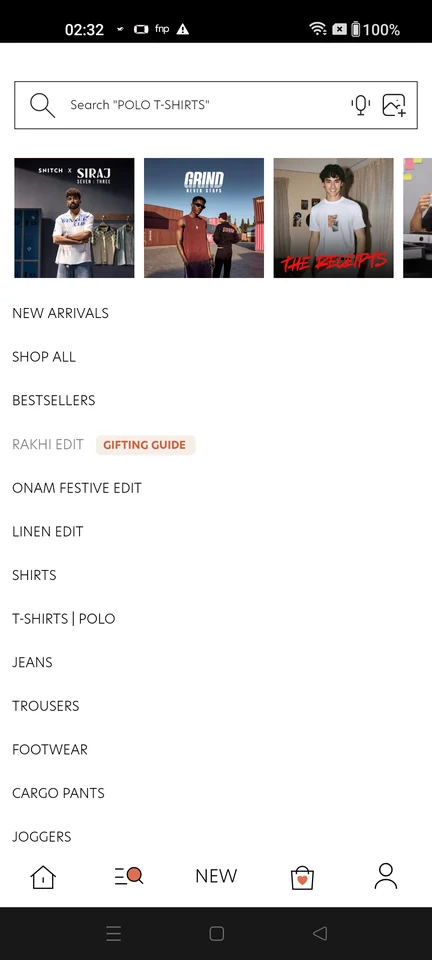
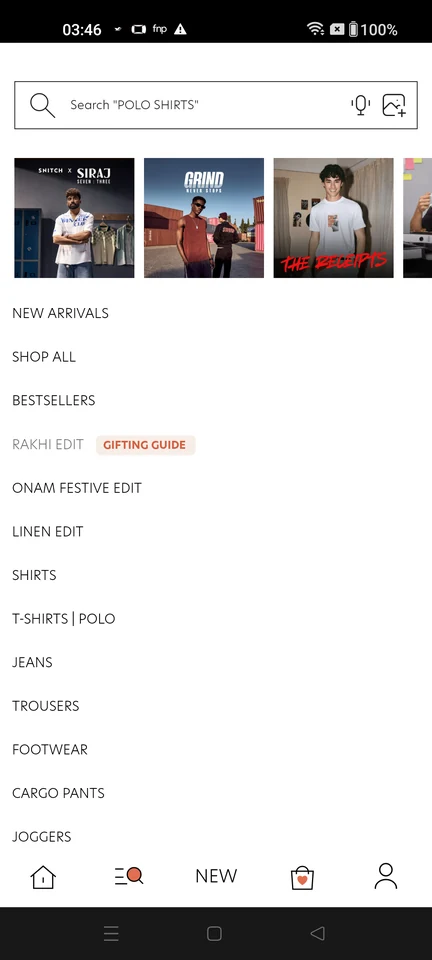
  2. Browse categories
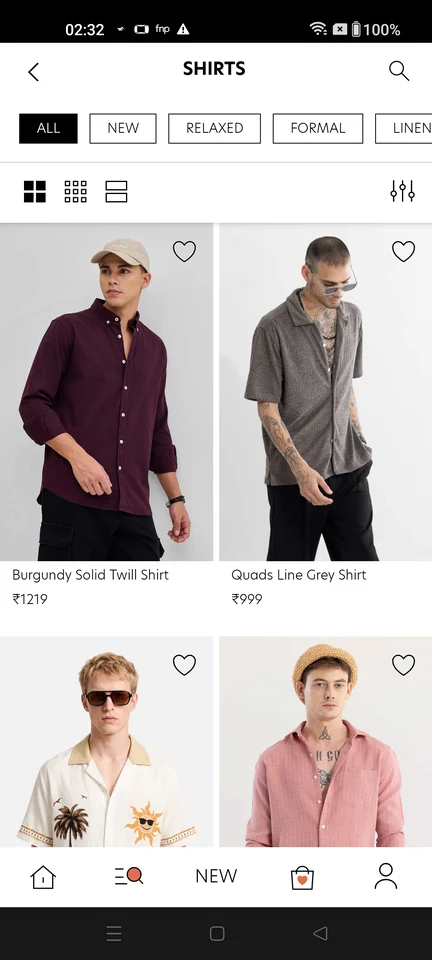
  3. Shirts listing
  4. Shirt product details
  5. Choose a size
  6. Added to bag
  7. Review bag and price details
  8. Login required to continue

8 screens

Read a product's ratings and reviews

Flow

About SNITCH Read a product's ratings and reviews

Browse shirts in Snitch and open a product’s rating to read its customer reviews.

  1. Browse categories
  2. Shirts listing
  3. Shirt page with rating summary
  4. Customer reviews panel

4 screens

Open a product from a curated collection

Flow

About SNITCH Open a product from a curated collection

Browse curated collections in Snitch, choose a look and open a product to review its price and sizes.

  1. App home
  2. Browse categories and collections
  3. Pick a look from the collection
  4. Product detail with price and sizes

4 screens

Open a product from search results

Flow

About SNITCH Open a product from search results

Search Snitch for polo shirts, compare names and prices in the results, and open a product page.

  1. Polo shirt search results
  2. Results with names and prices
  3. Polo shirt product page

3 screens

Search and filter the catalog

Flow

About SNITCH Search and filter the catalog

Search the Snitch catalog, sort results by lowest price and apply a colour filter. Review the resulting product list.

  1. Catalog browse home
  2. Search the catalog
  3. Search results grid
  4. Filter and sort sheet
  5. Sort options
  6. Results sorted by lowest price
  7. Green colour filter selected
  8. Filtered green results

8 screens