Inshorts

Inshorts app UI and user flows

App

About Inshorts

Screens and user flows from the Inshorts app.

Inshorts is an Android app in the News category. Last recorded on 14 September 2026.

Short news, topic preferences and questions about current stories.

In the library
7 flows · 27 screens
Category and platform
News · Android
Updated
Sept 2026
FLOWNATO RATING
3.7Our rating · 15 UX criteria

Onboarding

Flow

About Inshorts Onboarding

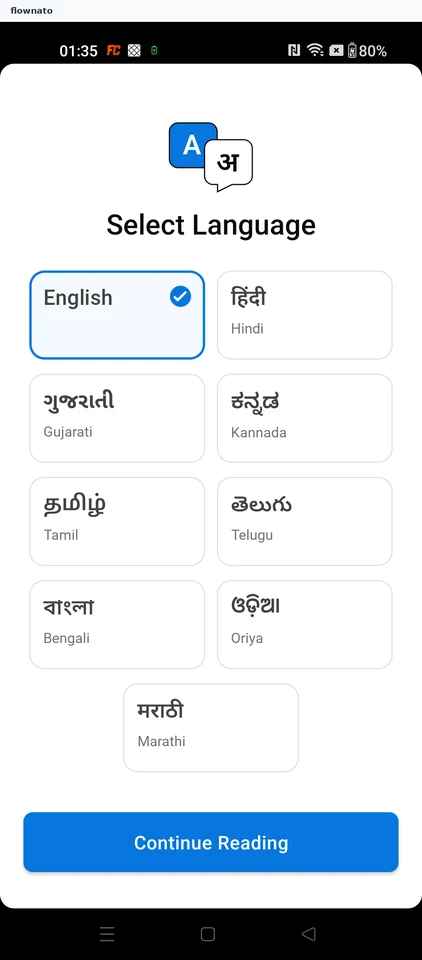
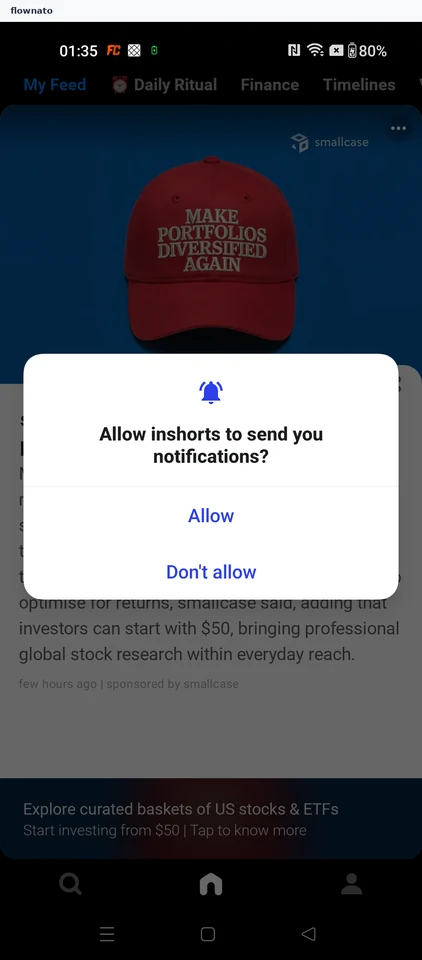
Choose a reading language and notification preference in Inshorts. Sign in with Google from the profile tab and return to the signed-in news feed.

  1. The app opens
  2. Choose a reading language
  3. Decide on notifications
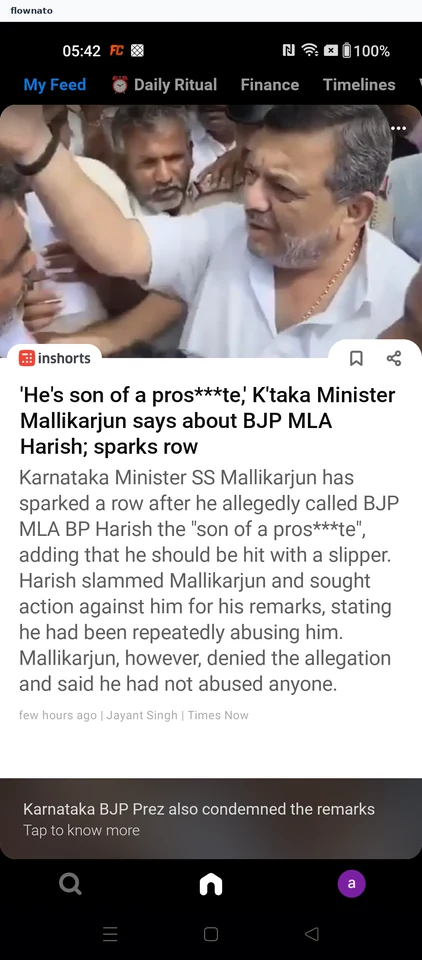
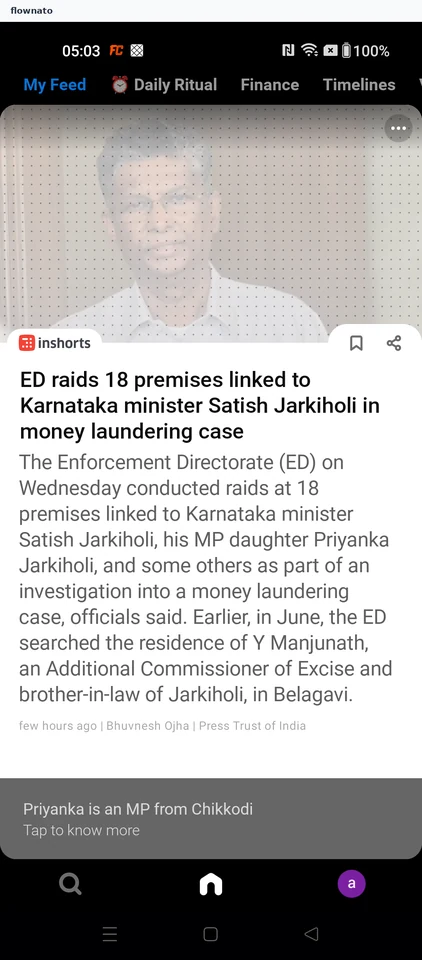
  4. Read the news feed
  5. See what signing in adds
  6. Pick a sign-in method
  7. Choose a Google account
  8. The account is signed in
  9. Back to a signed-in feed

9 screensFree with sign up

Daily Ritual

Flow

About Inshorts Daily Ritual

Set up Inshorts Daily Ritual with reading interests and personal preferences. Read through the day’s shorts to the All Done screen and first-day streak confirmation.

  1. Open Inshorts
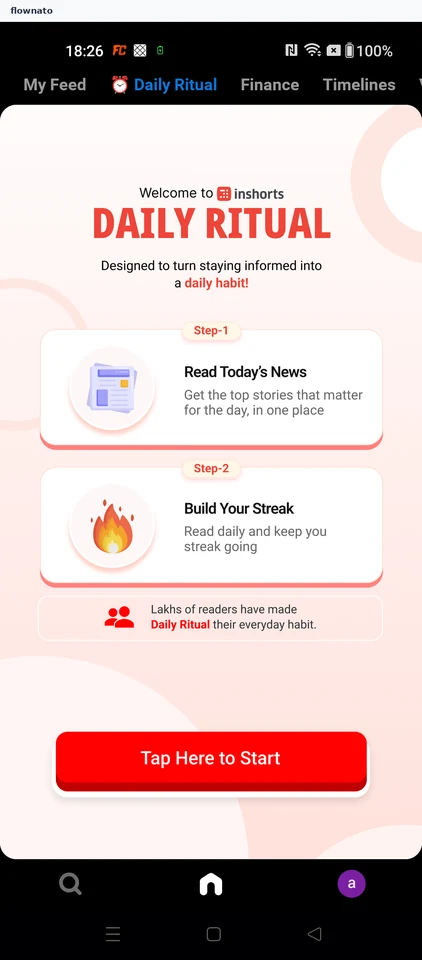
  2. Open the Daily Ritual tab
  3. Start the daily ritual
  4. Say why you want the ritual
  5. Pick your age bucket
  6. Choose how you identify
  7. Pick topics you care about
  8. Submit your topic choice
  9. Tell the ritual your name
  10. Continue with the entered name
  11. Choose your city
  12. Submit and start the ritual
  13. See today's ritual
  14. Read the first short
  15. Reach the last short
  16. Finish the ritual

16 screensFree with sign up

Save a news story

Flow

About Inshorts Save a news story

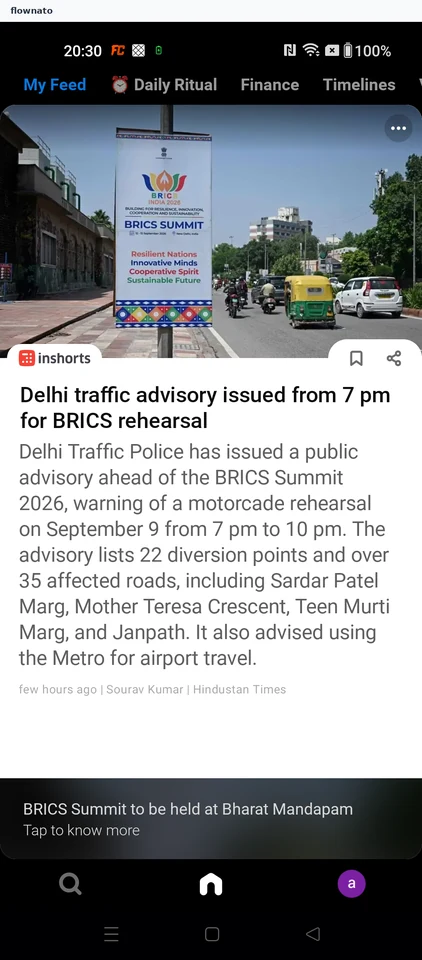
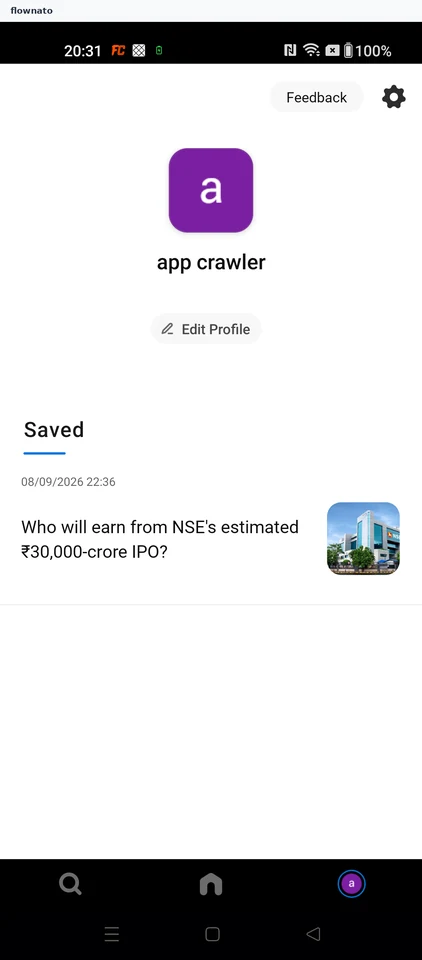
Open a story’s source coverage in Inshorts, return to the feed and save the story. Confirm it appears in Saved.

  1. Start Inshorts
  2. Arrive at My Feed
  3. Open deeper coverage
  4. Review source coverage
  5. Save the story
  6. Open Saved
  7. Confirm the saved story

7 screensFree with sign up

Inshorts: Start InshortsStart InshortsInshorts: Arrive at My FeedArrive at My FeedInshorts: Open deeper coverageOpen deeper coverage

News questions

Flow

About Inshorts News questions

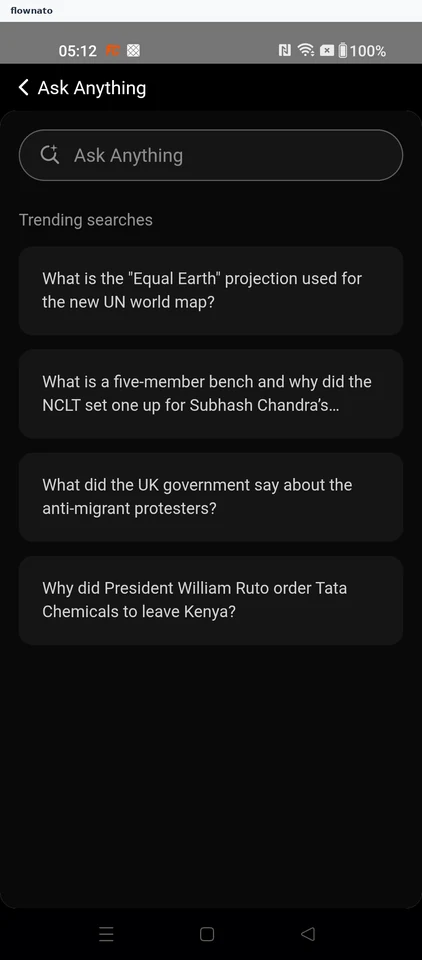
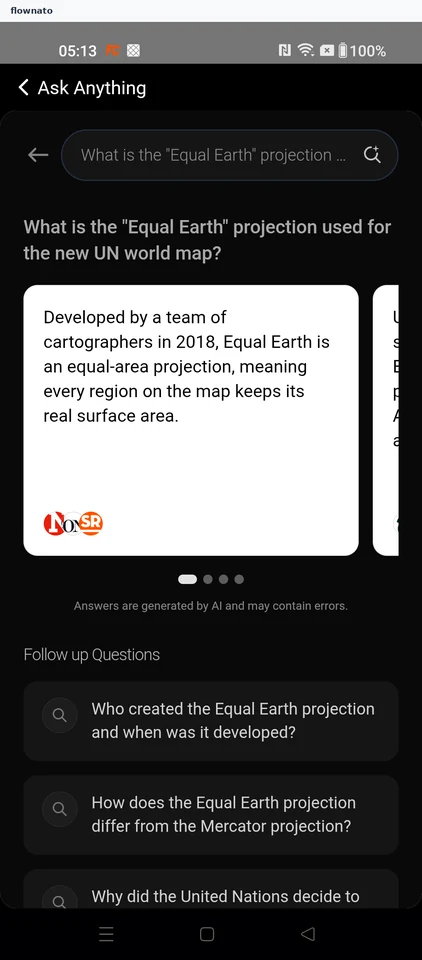
Open Ask Anything from Inshorts search, type a news question and submit it. Read the assistant’s answer and its sources.

  1. Start the app
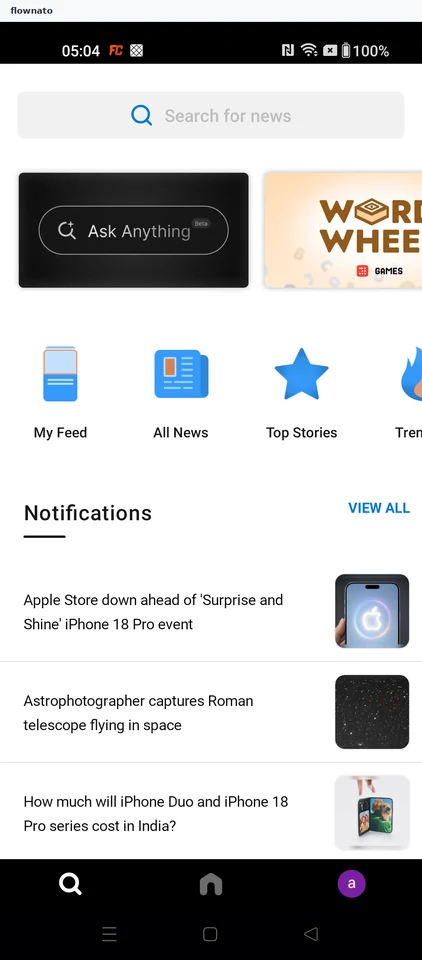
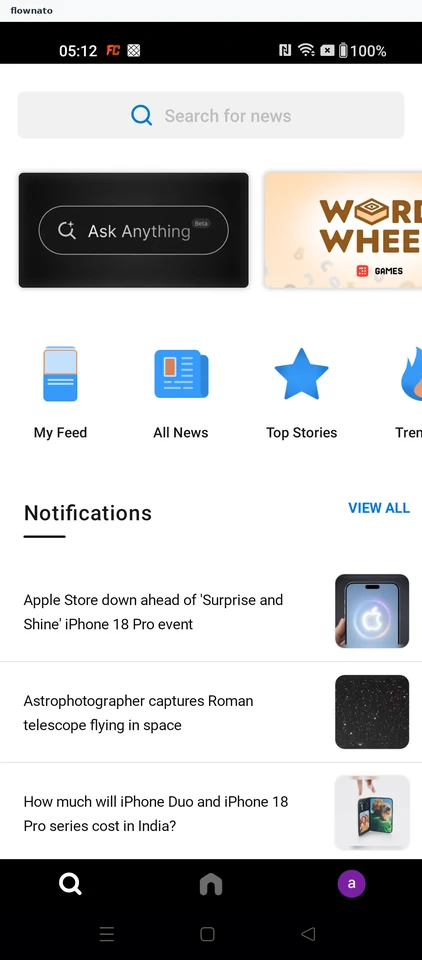
  2. Open search
  3. Choose Ask Anything
  4. Enter a question
  5. Submit the question
  6. Read the sourced answer

6 screens

Choose news topics

Flow

About Inshorts Choose news topics

Open Inshorts content preferences, mark Education as an interest and save the choice. Return to confirm the preference remains selected.

  1. Start from My Feed
  2. Open your account
  3. Open content preferences
  4. Review the unmarked topics
  5. Mark Education as interested
  6. Return to Options
  7. Preference saved

7 screens

Change the reading text size

Flow

About Inshorts Change the reading text size

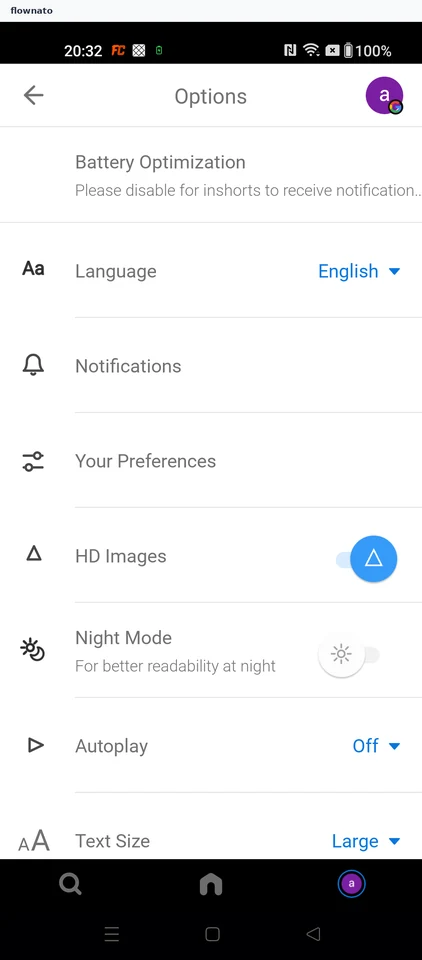
Change Inshorts text size from Default to Large in account settings. Return to the same feed story to see the larger text.

  1. Open the app
  2. The feed begins loading
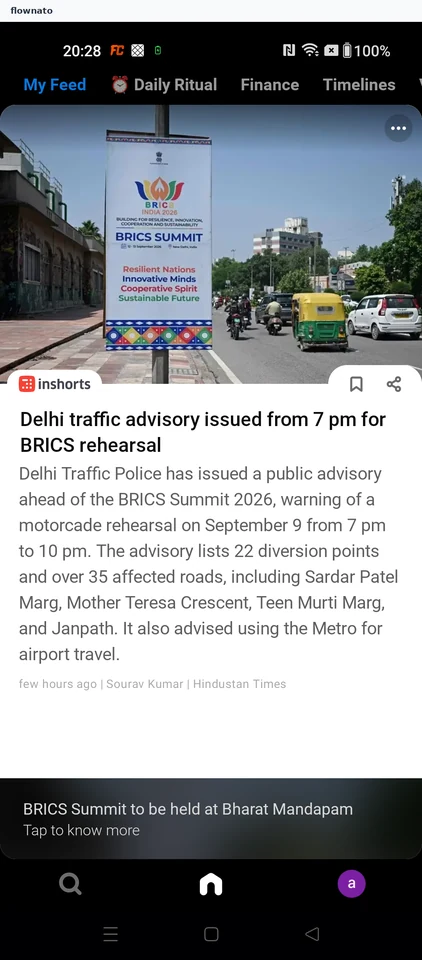
  3. Read at the default size
  4. Open account settings
  5. Find Text Size
  6. Choose Large
  7. Text size saved as Large
  8. Read at the larger size

8 screens