Swiggy

Swiggy app UI and user flows

App

About Swiggy

Screens and user flows from the Swiggy app.

Swiggy is an Android app in the Food & drink category. Last recorded on 14 September 2026.

Explore the screens and product flows inside Swiggy.

In the library
5 flows · 33 screens
Category and platform
Food & drink · Android
Updated
Sept 2026
FLOWNATO RATING
3.7Our rating · 15 UX criteria

Onboarding

Flow

About Swiggy Onboarding

Verify a phone number in Swiggy, add a name and choose location access. Search, label and save a delivery address, then set notifications and reach Home.

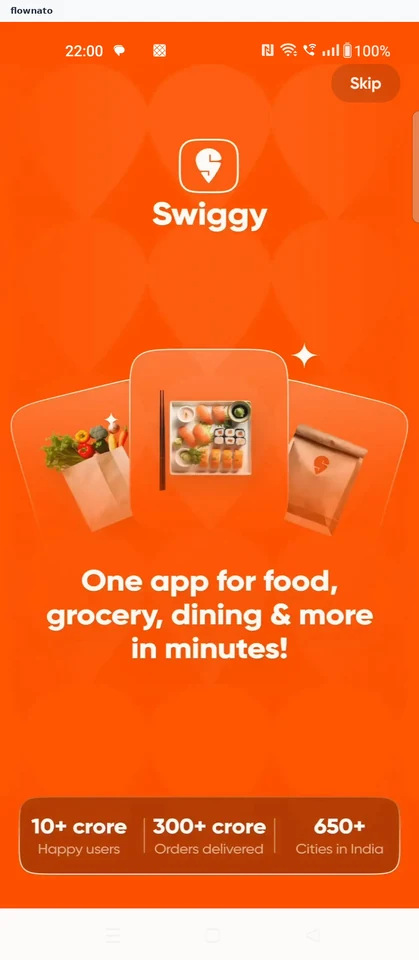
  1. Open Swiggy
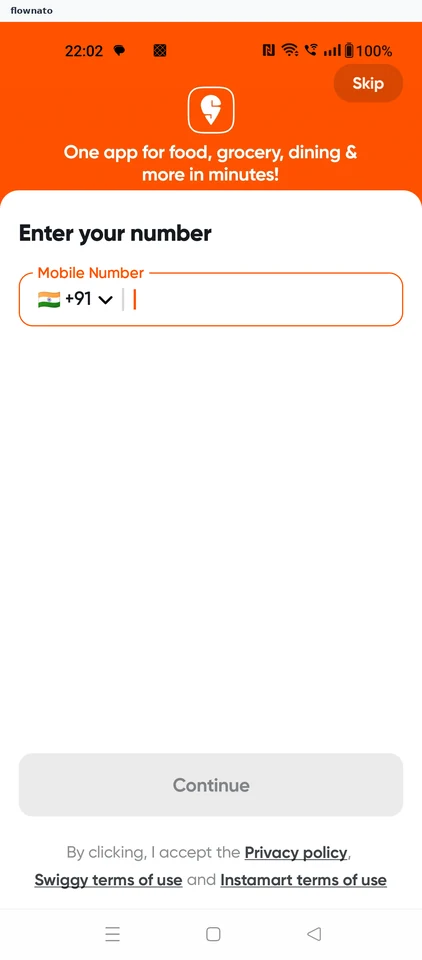
  2. Enter phone number
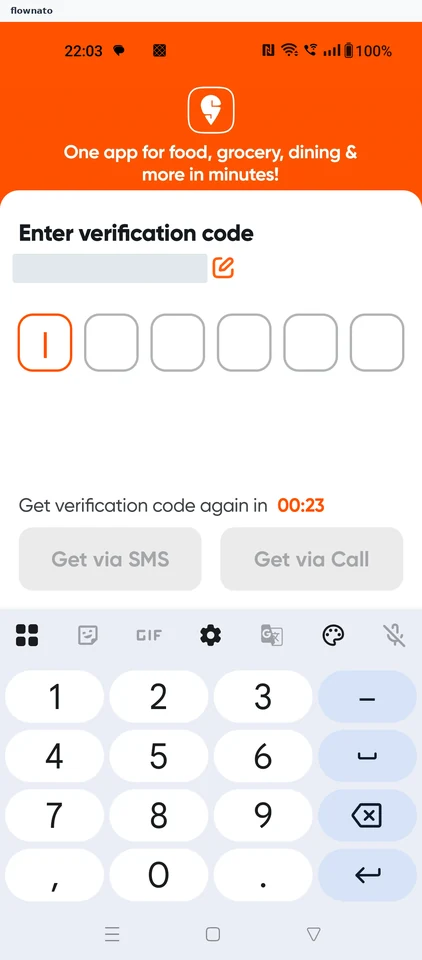
  3. Verify the phone
  4. Add the required name
  5. Choose approximate location
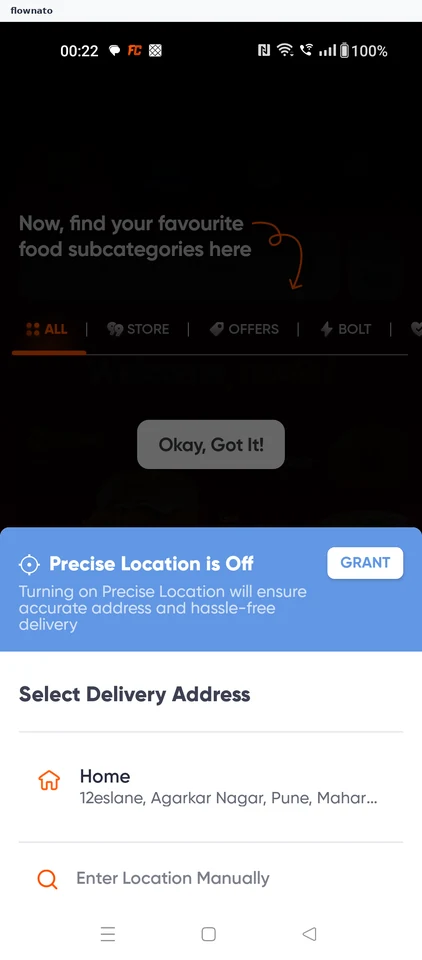
  6. Grant location access
  7. Keep approximate access
  8. Add a delivery address
  9. Use manual search
  10. Select a search result
  11. Confirm the delivery point
  12. Reuse account details
  13. Label the address
  14. Save the address
  15. Confirm saved details
  16. Choose notification preference
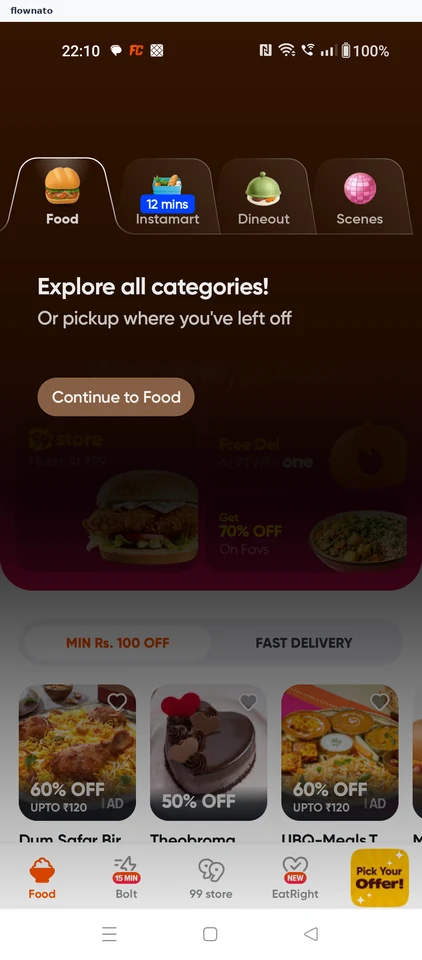
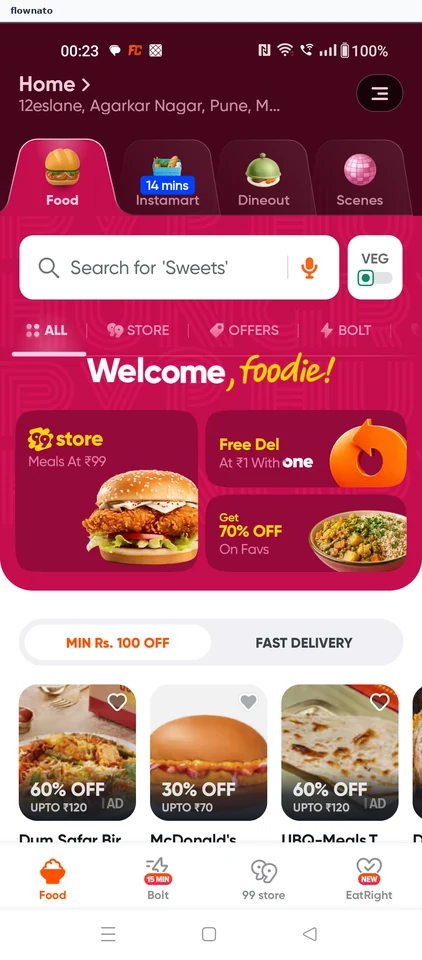
  17. Reach signed-in Home

17 screensFree with sign up

Build food order

Flow

About Swiggy Build food order

Open a restaurant menu in Swiggy Food, customise an item and review the cart. Continue to payment options without placing the order.

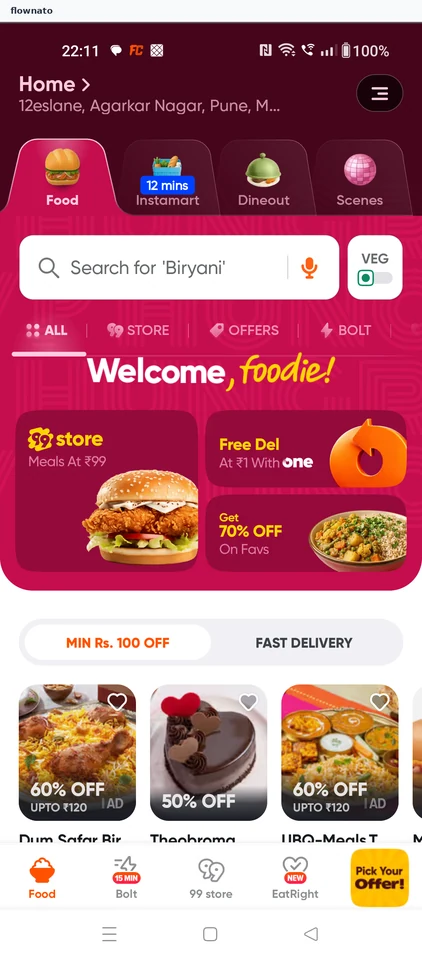
  1. Start from Home
  2. Browse Food
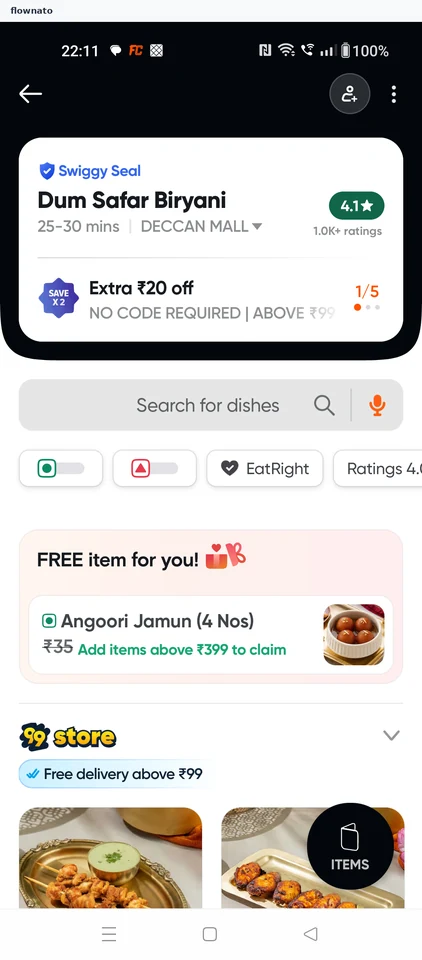
  3. Open the restaurant menu
  4. Choose a menu item
  5. Review customization
  6. Review the added item
  7. Inspect the configured cart
  8. Review payment options
  9. Stop before payment

9 screensFree with sign up

Plan table booking

Flow

About Swiggy Plan table booking

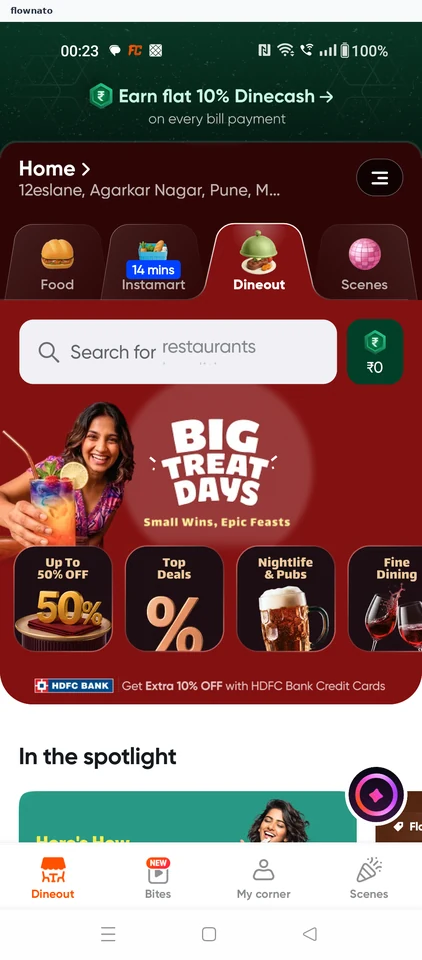
Choose a location in Swiggy Dineout, open a venue and set the table-booking details. Review the reservation before confirming it.

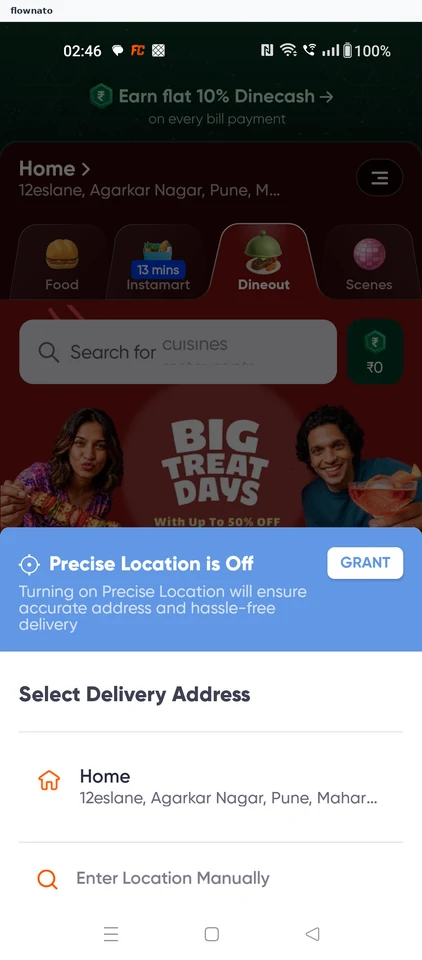
  1. Select the saved address
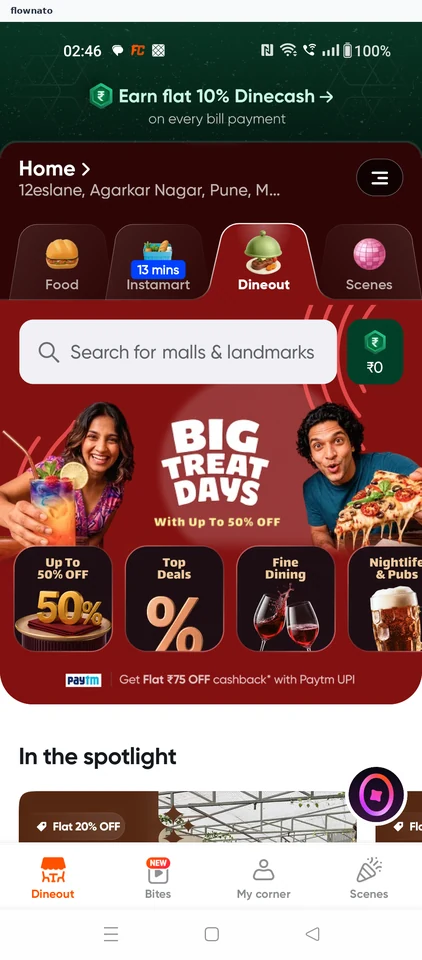
  2. Open Dineout
  3. Browse Dineout
  4. Choose a venue
  5. Review the venue
  6. Configure the table
  7. Review the booking
  8. Stop before booking

8 screens

Build grocery basket

Flow

About Swiggy Build grocery basket

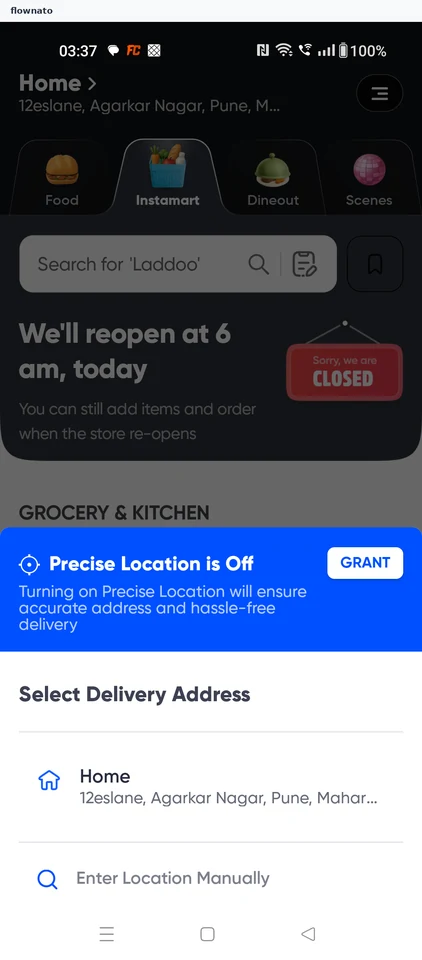
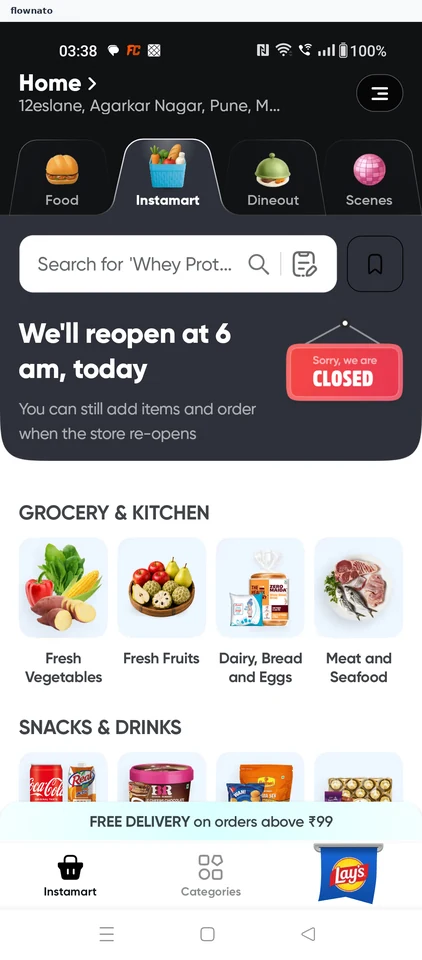
Choose a saved address in Swiggy Instamart and add a fruit pack to the basket. Skip the membership offer and review the cart’s closed-store message.

  1. Open Instamart
  2. Choose the saved address
  3. Enter Instamart
  4. Browse fresh fruit
  5. Choose a pack
  6. Review the added item
  7. Skip the membership
  8. Reach the closed-store cart

8 screens

Plan event booking

Flow

About Swiggy Plan event booking

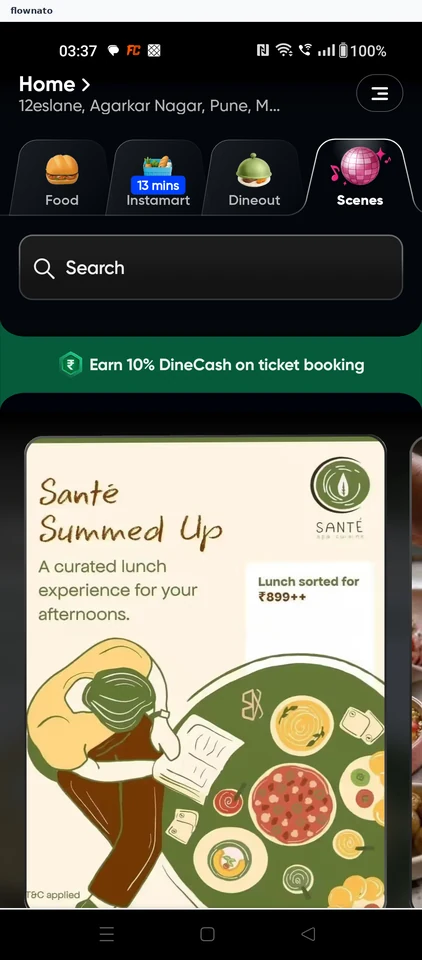
Set interests in Swiggy Scenes, find a comedy event and compare schedules. Choose a ticket, inspect the coupon and review the total before payment.

  1. Select saved address
  2. Open Scenes
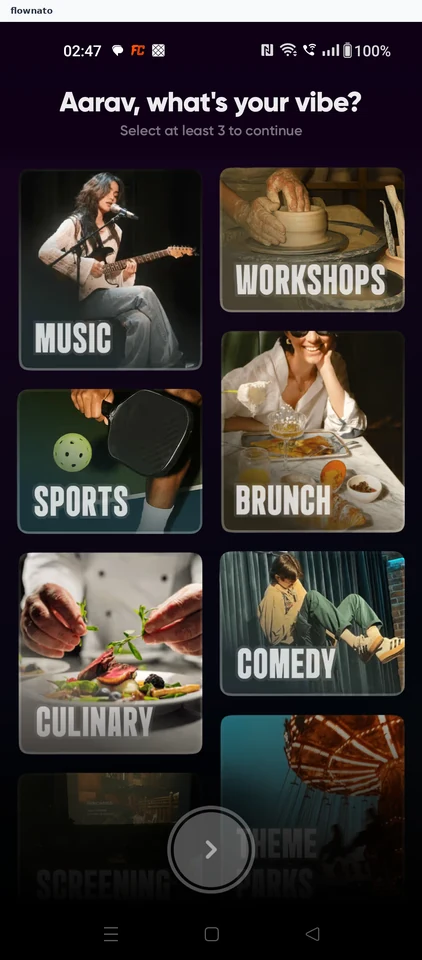
  3. Choose Music
  4. Add Workshops
  5. Add Comedy
  6. Continue setup
  7. Search Scenes
  8. Choose a comedy event
  9. Review event details
  10. Compare schedules
  11. Open ticket selection
  12. Choose a pass
  13. Confirm one ticket
  14. Review booking total
  15. Check coupon
  16. Stop before payment

16 screensFree with sign up