bigbasket

bigbasket app UI and user flows

App

About bigbasket

Screens and user flows from the bigbasket app.

bigbasket is an Android app in the Groceries category. Last recorded on 14 September 2026.

Explore the screens and product flows inside bigbasket.

In the library
5 flows · 16 screens
Category and platform
Groceries · Android
Updated
Sept 2026
FLOWNATO RATING
3.6Our rating · 15 UX criteria

Add email

Flow

About bigbasket Add email

Open Update Profile and enter an email address in bigbasket. A six-digit verification-code screen appears; the email is not added during this flow.

  1. Open the app
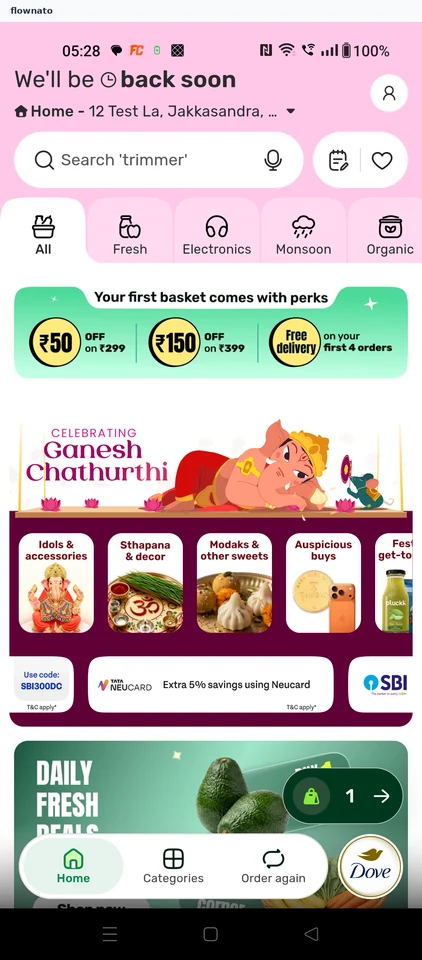
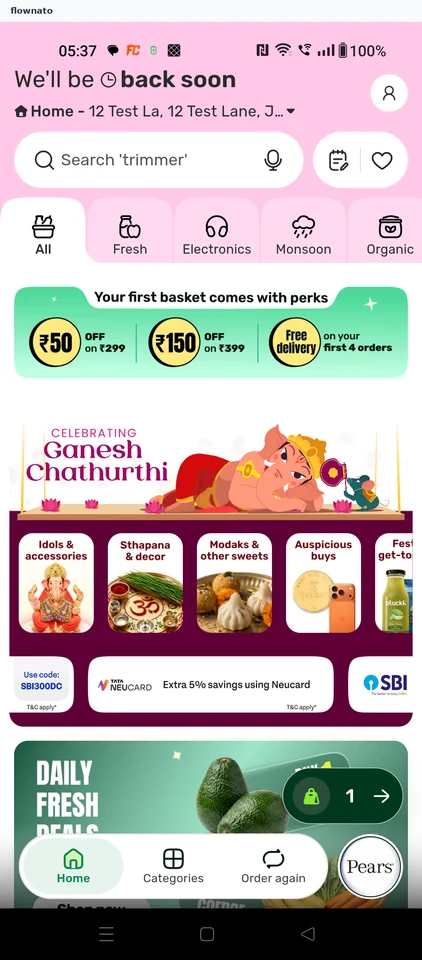
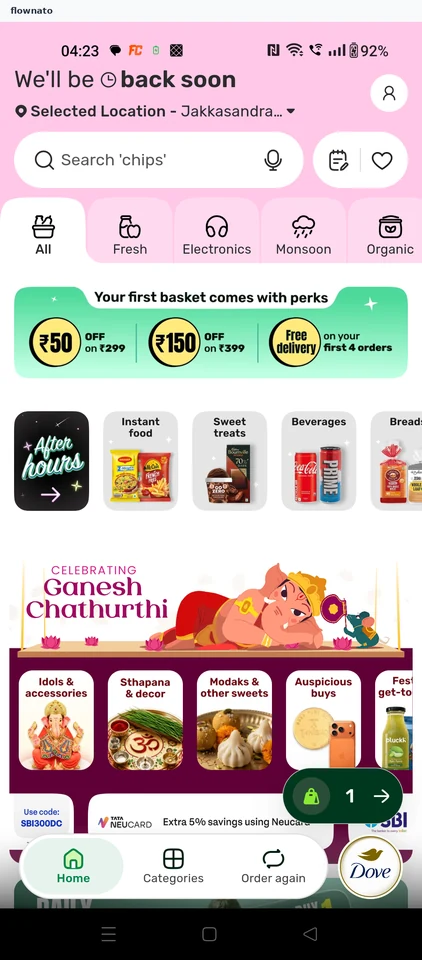
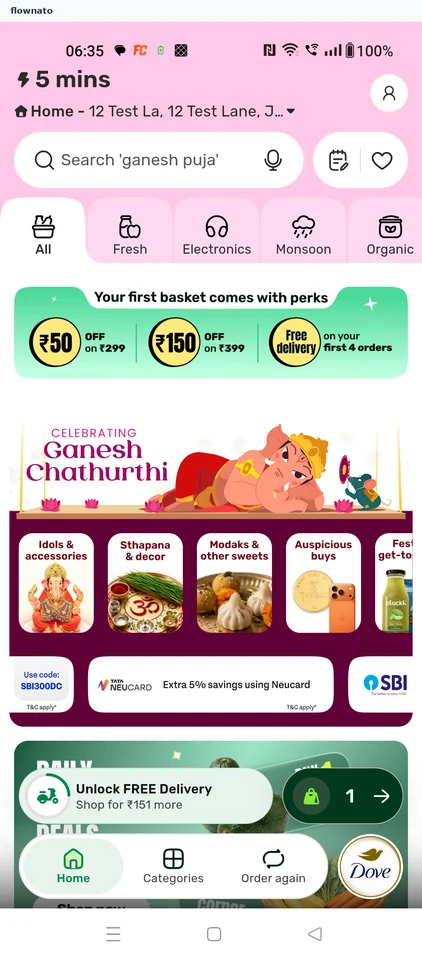
  2. Reach the store home
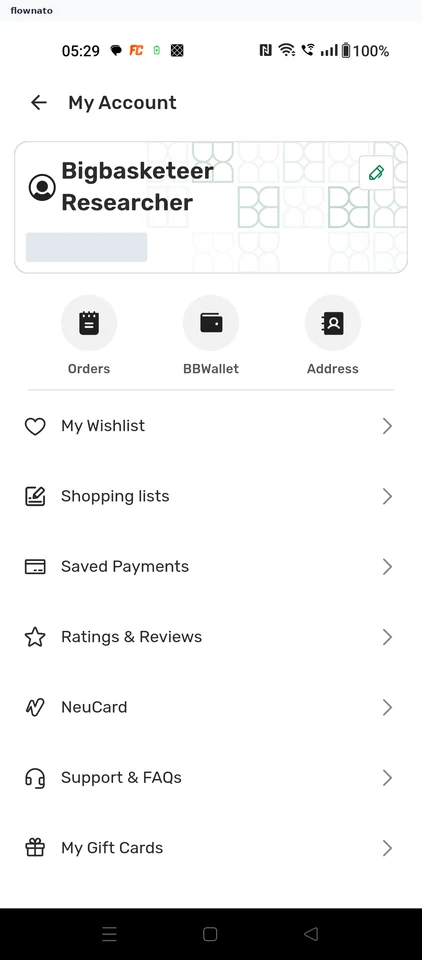
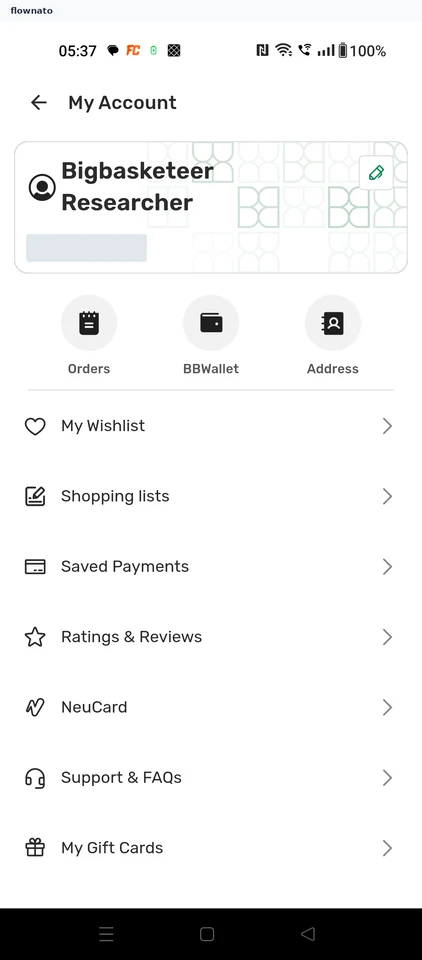
  3. Open the profile card
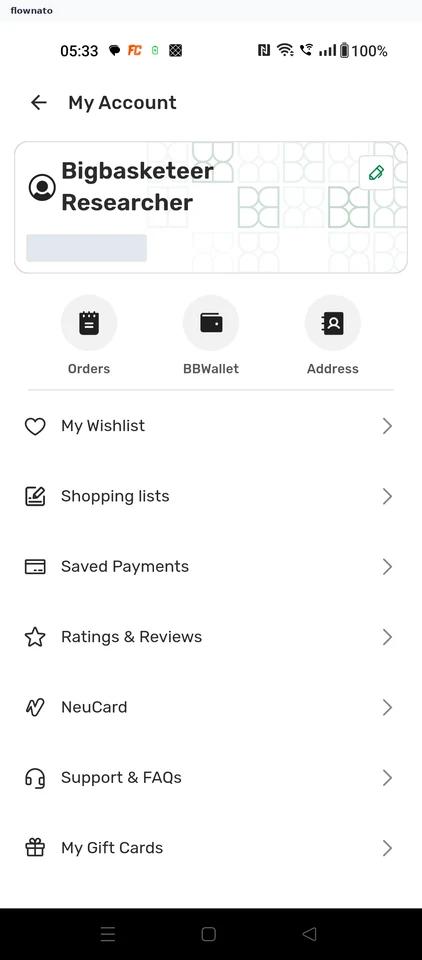
  4. See what is stored
  5. Type the email address
  6. Stopped at email verification

6 screensFree with sign up

Edit address

Flow

About bigbasket Edit address

Edit a saved bigbasket delivery address through its map pin and address form. Save the street change and verify it in both the delivery header and the address list.

  1. Open the account area
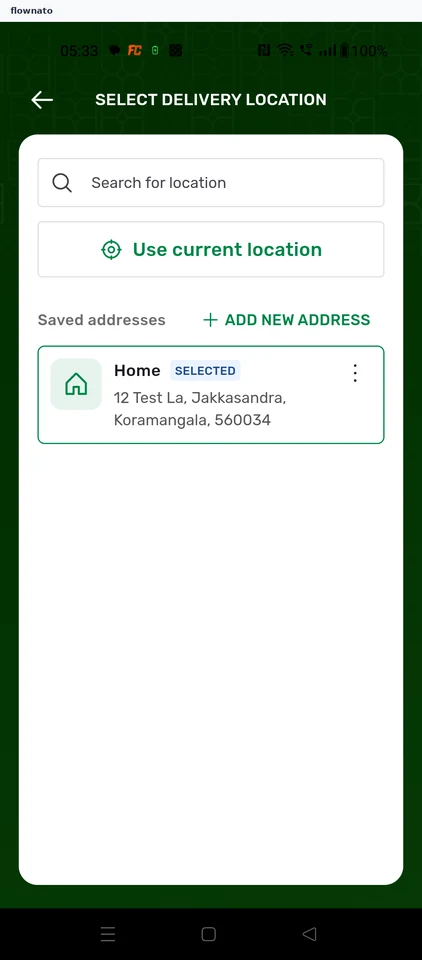
  2. See the saved addresses
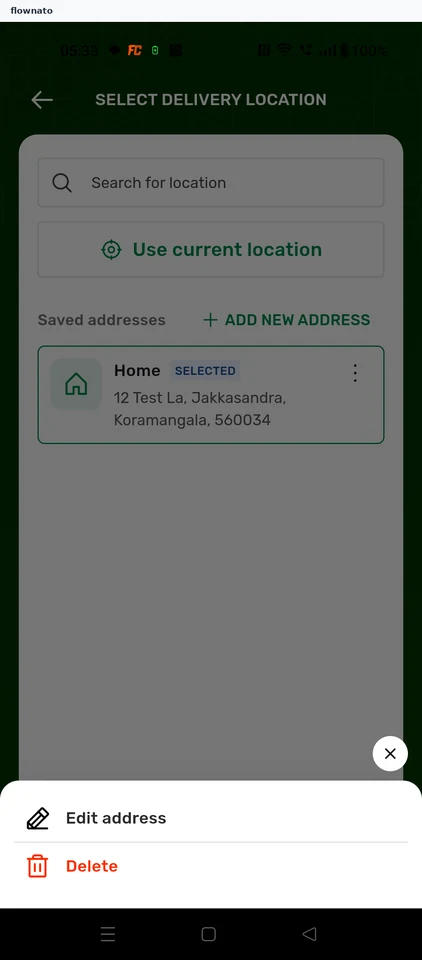
  3. Choose to edit, not delete
  4. Confirm the map pin
  5. Open the address form
  6. Enter the street line
  7. Return to the store home
  8. Confirm the change stuck

8 screensFree with sign up

Check wishlist

Flow

About bigbasket Check wishlist

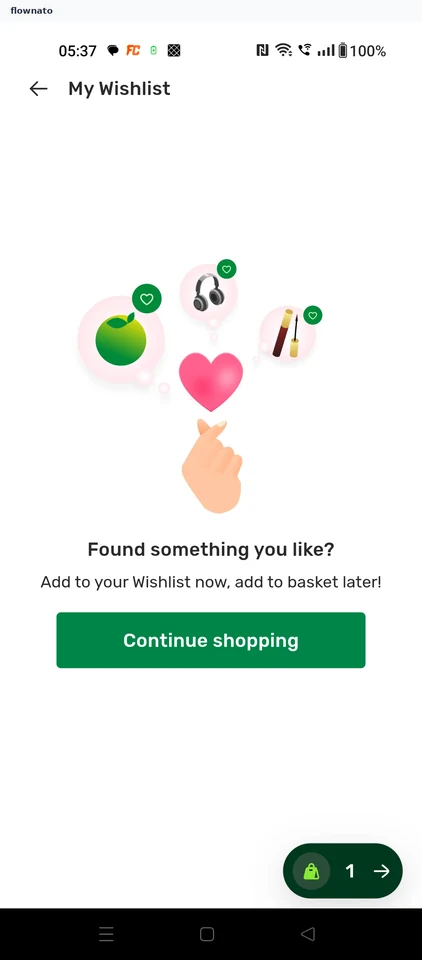
Open My Wishlist from bigbasket’s account page. See the empty-list message and its Continue shopping action.

  1. Start at the store home
  2. Open My Wishlist
  3. The wishlist is empty

3 screensFree with sign up

Checkout order

Flow

About bigbasket Checkout order

Add a delivery address, choose a scheduled delivery window and review the bigbasket order summary. The flow reaches payment options without selecting a method or placing an order.

  1. App start
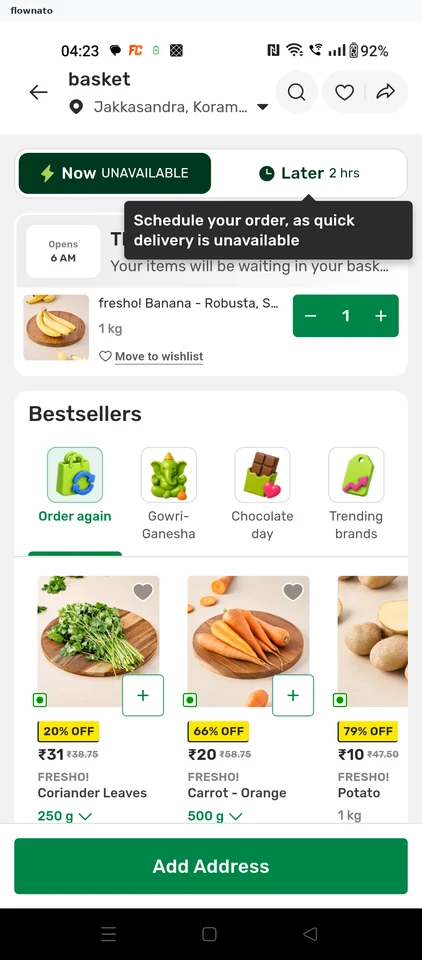
  2. Open the basket
  3. Address required
  4. Confirm location
  5. Address form
  6. Save the address
  7. Store closed now
  8. Scheduled delivery
  9. Pick a slot
  10. Confirm the slot
  11. Order summary
  12. Payment options
  13. Stop before paying

13 screens

Add to basket

Flow

About bigbasket Add to basket

Browse grocery categories in bigbasket, compare produce and choose a pack size. Add the item and review the basket before the sign-in required for ordering.

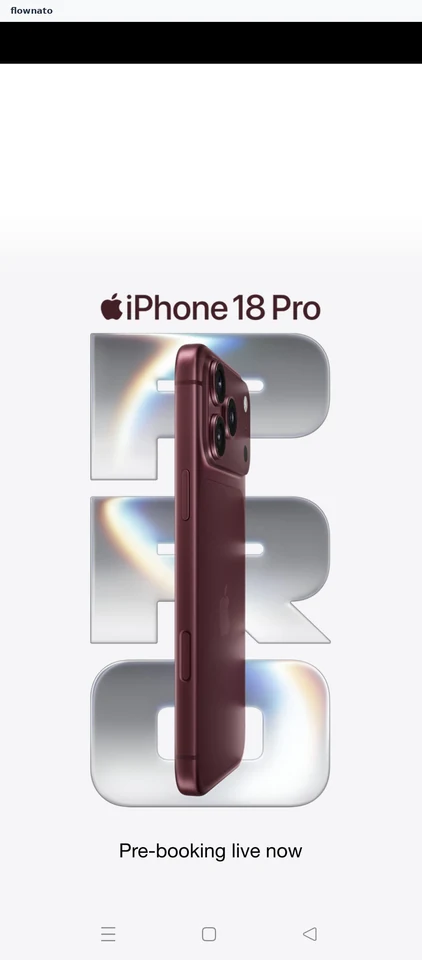
  1. Wait through ad
  2. Start at Home
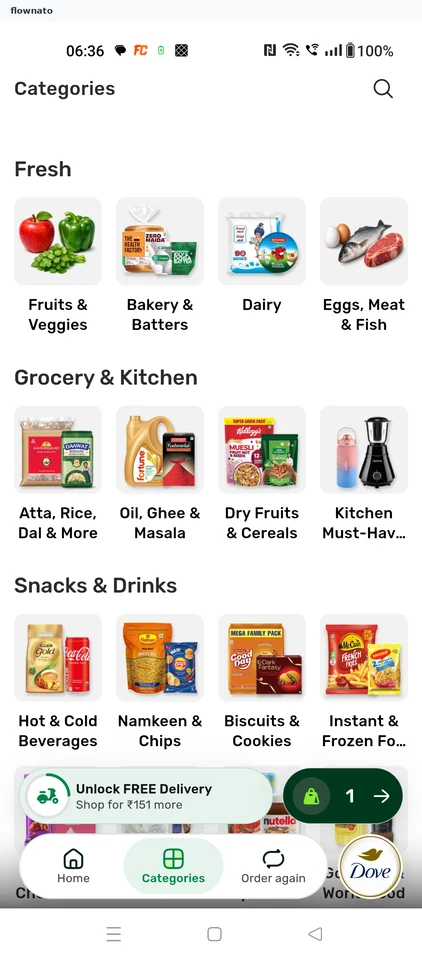
  3. Choose a department
  4. Narrow the category
  5. Compare produce
  6. Review the pack
  7. Item added
  8. Basket confirmed

8 screens