Blog / Teardown
What Canva asks before you design anything
Canva asks three things before you design anything: what you’ll use it for, whether you want notifications, and how it can use your content for AI. Why the order works, and the one default worth questioning.
Flownato team ·
We captured Canva's onboarding on a fresh Android phone this week, mostly to see what it asks before it lets you make anything. The answer is three things. One question about you, one about notifications, and one about AI. Then you're dropped on the Templates home and left alone.
The whole thing takes under a minute. But the order of those three screens is doing more work than it looks like, so it's worth slowing down on each one.
The first question changes what you see next
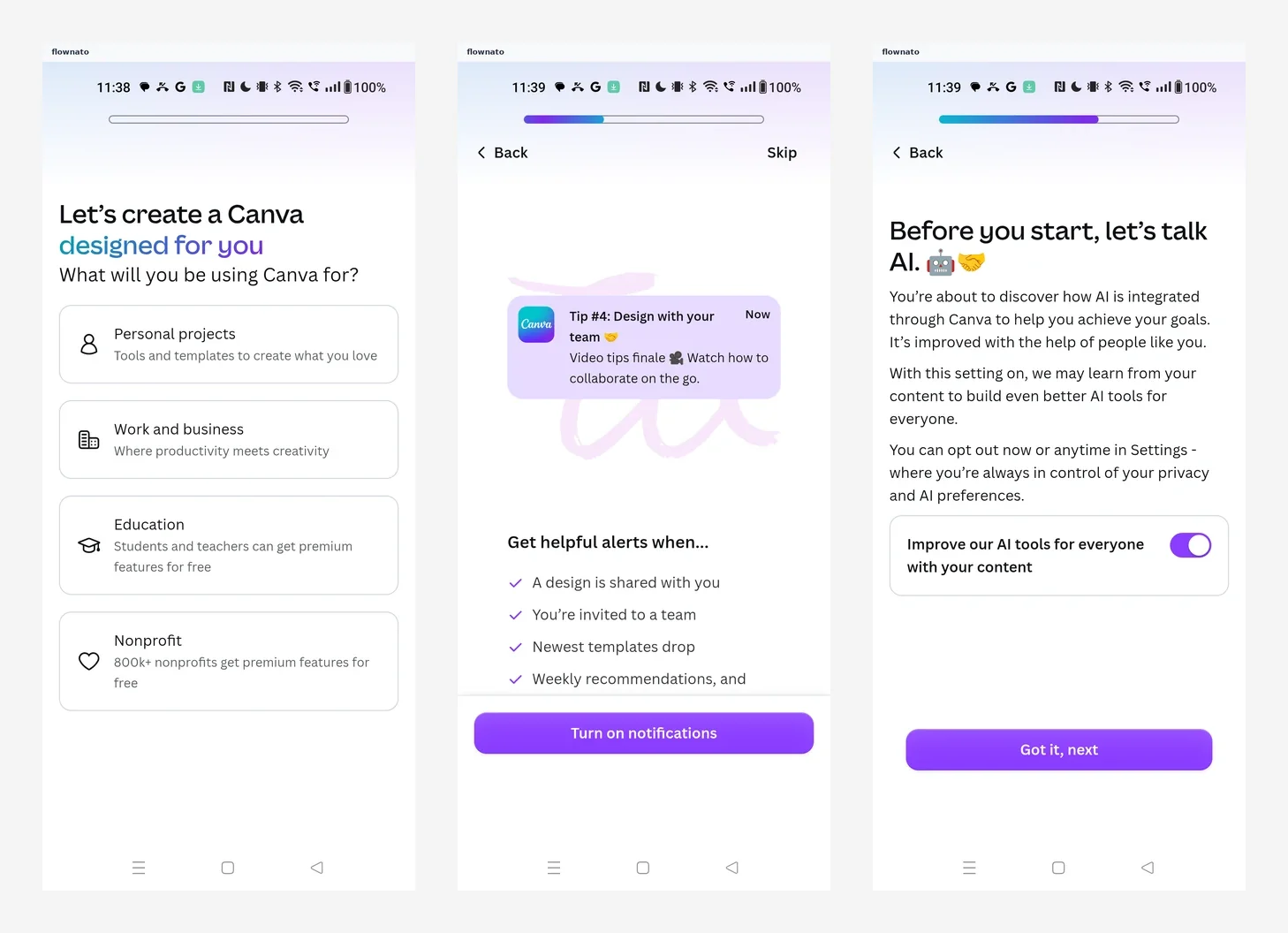
The first screen after Google sign-in says "Let's create a Canva designed for you" and asks what you'll be using it for: personal projects, work and business, education, nonprofit. Each option has a short line under it, so nobody has to guess what "Work and business" covers.
It's one tap. It doesn't ask for your name, your company or your job title, and the answer pays off quickly: it shapes the Templates home you land on a few seconds later.
The nice part is that it isn't a trap. You can change the answer later from your profile, and Canva confirms it will tailor things to the new choice. So the question can stay light, because getting it "wrong" costs nothing.
If your own onboarding opens with a form, ask which single answer would change the most about the first screen a person sees. Ask that one. Push the rest later, or drop it.
Notifications get a pitch, not a popup
The second screen is about notifications, and it doesn't open with the system dialog. It opens with a mock notification, "Tip #4: Design with your team", on a soft purple background. Underneath is the list of what you'd actually hear about:
- a design is shared with you
- you're invited to a team
- new templates drop
- weekly recommendations
Then a big "Turn on notifications" button, with "Skip" in the top right. In our run we skipped, and the flow simply moved on. It didn't try to change our mind or ask again later in the flow.
The screen sells the value before the operating system asks for permission, which is the only moment you get to explain yourself. The useful alerts also come first. "Someone shared a design with you" is a reason to say yes. "Weekly recommendations" is last on the list, which is where it belongs.
The AI screen is honest, mostly
The third screen is the one we didn't expect: "Before you start, let's talk AI."
It says, in plain words, that Canva may learn from your content to build better AI tools, and that you can opt out now or anytime in Settings. There's a single toggle: "Improve our AI tools for everyone with your content."
It's switched on by default.
That's the part worth arguing about with your team. The screen is clear, it comes early, and it doesn't bury the setting three menus deep, which is more than a lot of apps manage. But "on unless you notice" is still a decision, and some people will feel differently once they realise what they agreed to. If you add a screen like this, choose the default on purpose and be ready to explain it.
What we'd borrow
Canva's onboarding is short because it only asks for what it can use straight away. If we were designing a first-run flow tomorrow, we'd start with one question whose answer changes the next screen, and leave the rest until it's needed. We'd explain notifications before the system prompt and lead with the alerts people actually want. We'd put any data or AI choice up front in plain words, and pick its default on purpose. And we'd let people change their early answers later, because they decide faster when they know they can undo it.
You can step through the full Canva onboarding flow screen by screen, or see how other apps handle onboarding.